The digital map
of your company.
TeamBook Connected Org turns your Microsoft 365 data into a living people hub inside SharePoint — searchable directory, department browser, office locations, and org charts. All live. All in your tenant.
- ✓ Data stays in your tenant
- ✓ No Azure infrastructure needed
- ✓ Live sync from Microsoft Entra ID
Built for organisations running on Microsoft 365
Built for how your team actually works
A closer look at the features your people will use every day.
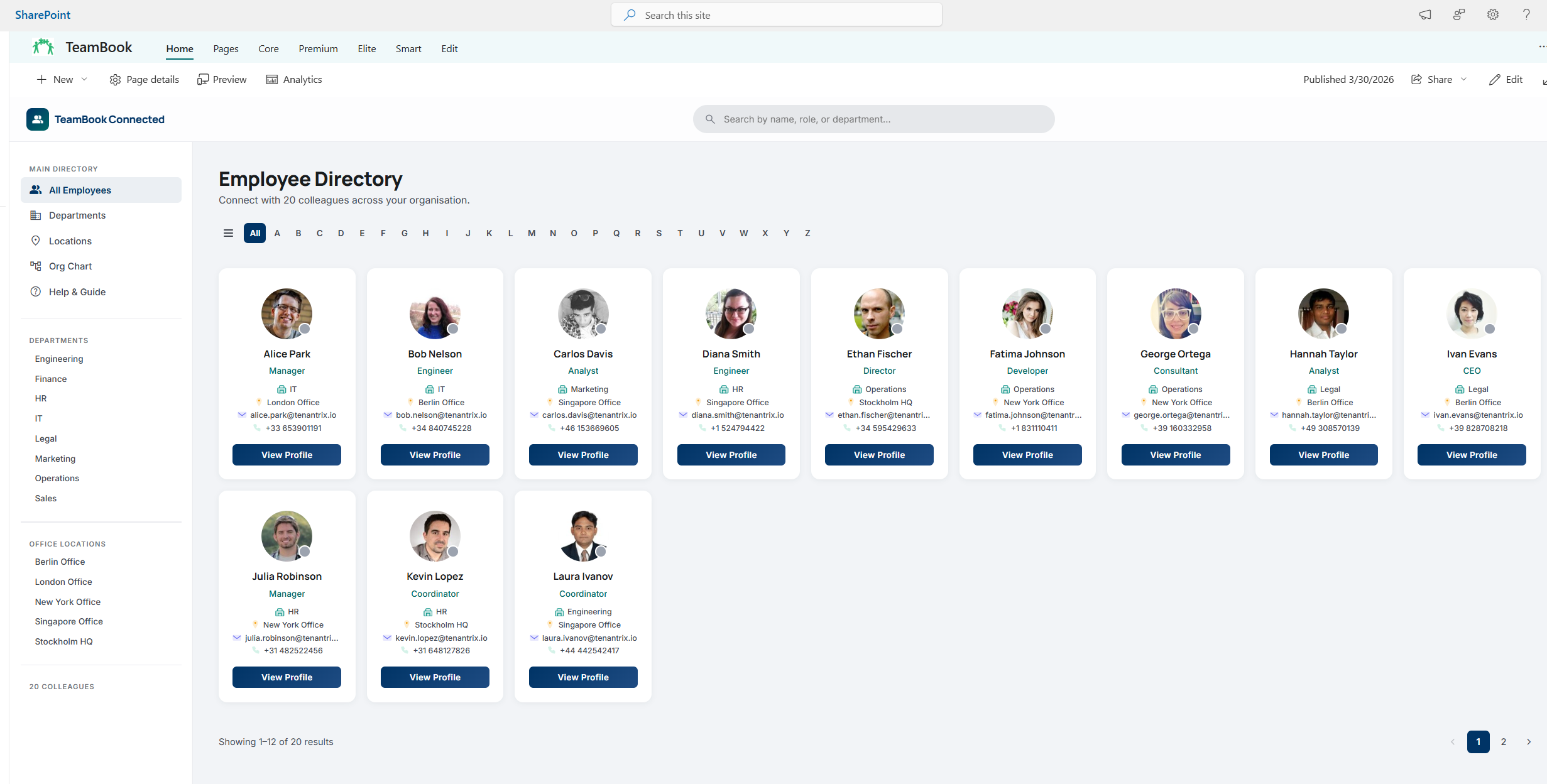
The directory your intranet always needed
A searchable, filterable grid of every colleague — with real-time Teams presence, department and location filters, an A–Z alphabet bar, and a Favourites strip for the people you contact most.
- ✓ Search by name, title, department, email or phone
- ✓ Filter sidebar by department or office location
- ✓ Star colleagues to pin them to Favourites
- ✓ Live presence: Available · Busy · Away · Offline
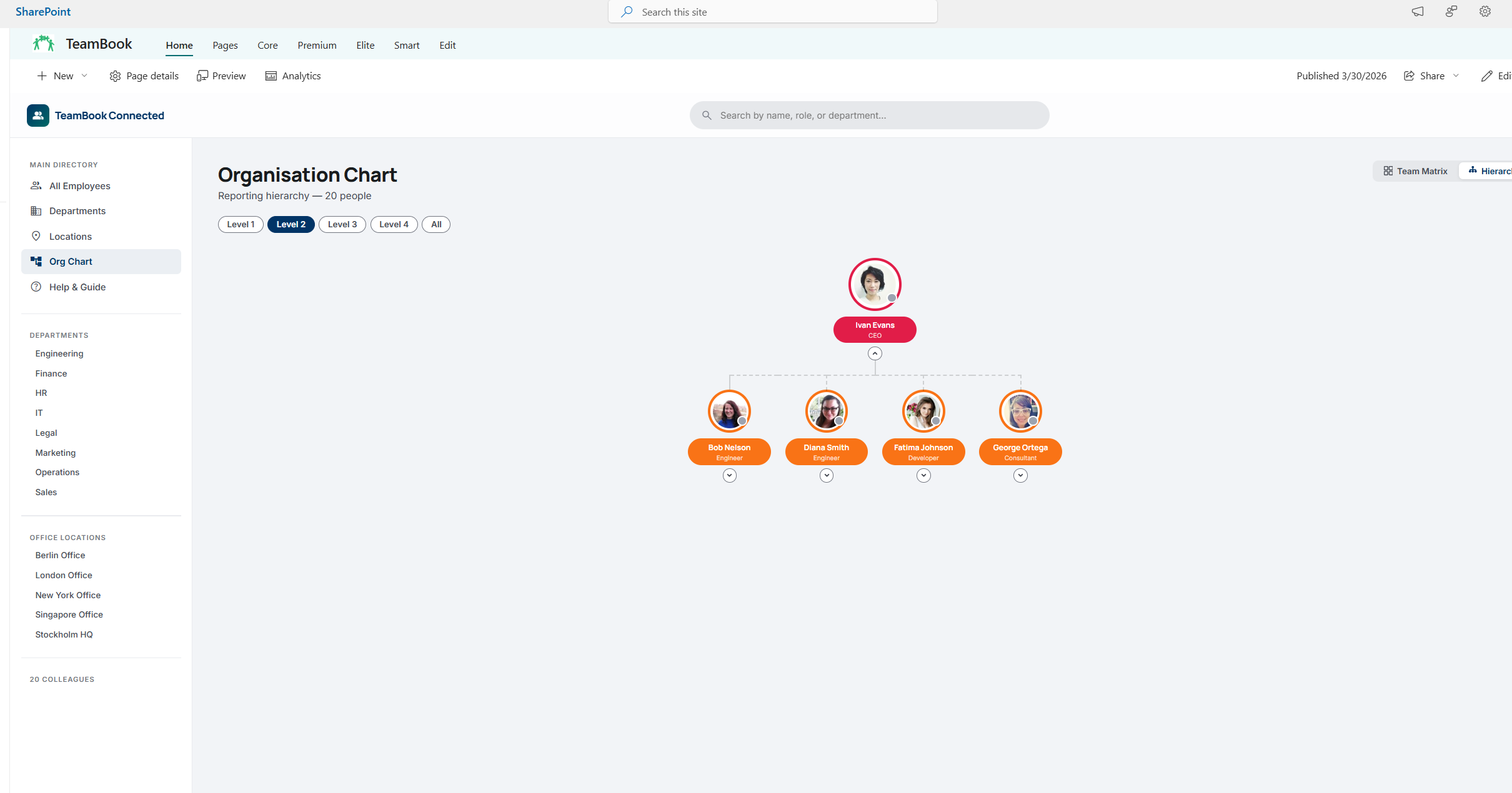
Two org chart views, one click away
Switch between Team Matrix — which groups colleagues into department columns — and Hierarchy Tree, which renders the full Entra ID reporting chain with collapsible level filters. Click any node to open the profile.
- ✓ Team Matrix: department columns, lead highlighted
- ✓ Hierarchy Tree: full reporting chain from Entra ID
- ✓ Level filter buttons to control visible depth
- ✓ Click any node to open the profile panel
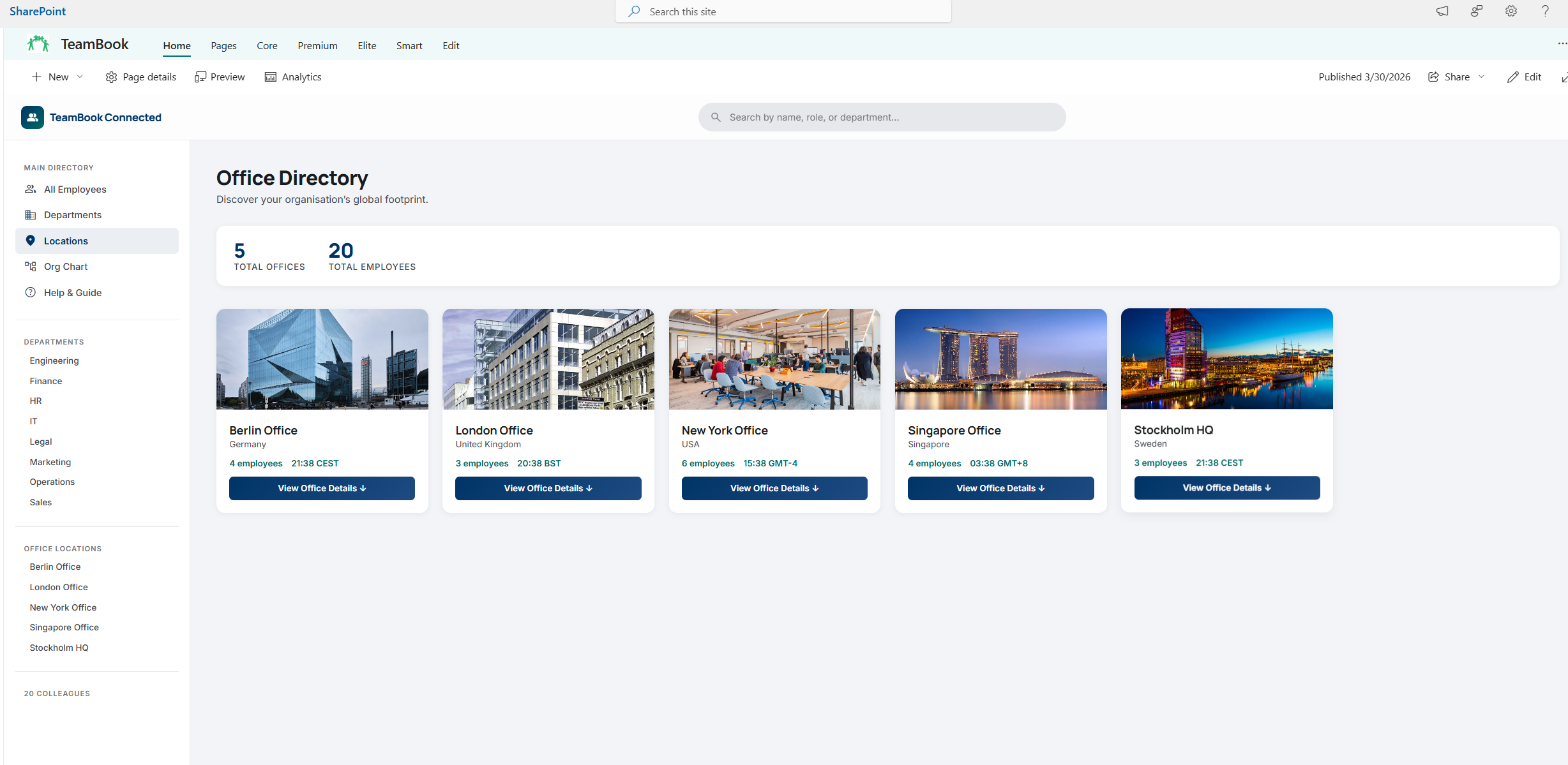
Departments & locations out of the box
Browse your whole organisation by team or by office. Department cards show the head, member count, and a custom icon. Location cards show address details, employee count, and how many people are online right now.
- ✓ Department head, icon and member count
- ✓ "View All" jumps straight to filtered directory
- ✓ Office locations with address and online count
- ✓ Headquarters highlighted separately
Take action, not just browse
TeamBook is more than a read-only directory. Multi-select lets you pick a group of colleagues and copy their emails or phones at once, or open a group Teams chat straight from the directory. Export the current filtered view to CSV with one click.
- ✓ Multi-select mode via the menu
- ✓ Copy all selected emails or phones
- ✓ Open a group Teams chat with selected colleagues
- ✓ Export visible list to CSV with one click
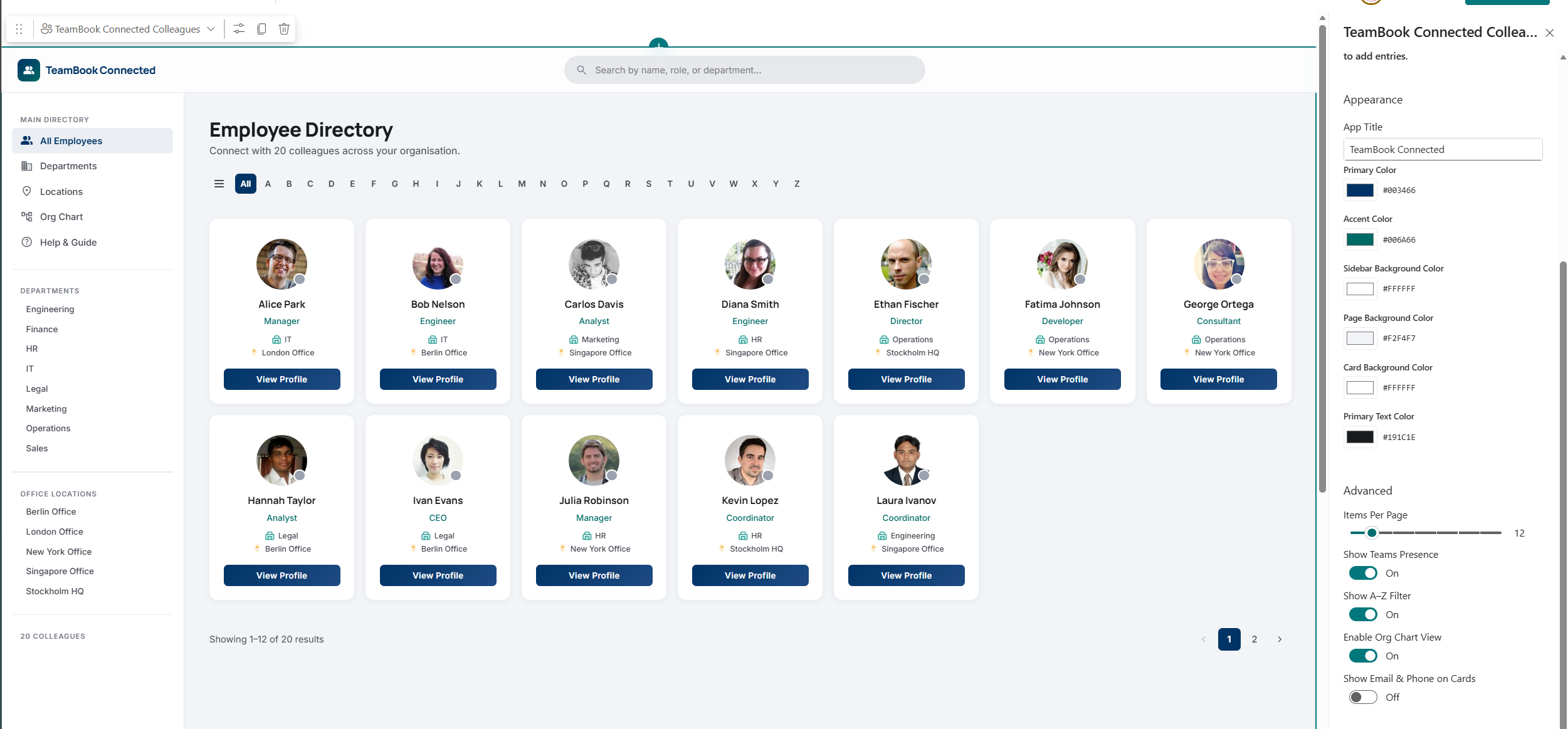
Twelve features. One web part.
All features ship in a single SPFx web part — no plugins, no extra licences, no config headaches.
Employee Directory
Browse all colleagues in a searchable, paginated grid.
Smart Search
Search across name, title, department, email and phone simultaneously.
Favourites
Star colleagues to pin them to the Favourites strip.
Teams Presence
Live presence dots on every card — updated from Microsoft Teams.
Multi-Select
Pick multiple colleagues and take bulk action.
Export to CSV
Download the visible list as a spreadsheet — filtered exactly as you see it.
Team Matrix
Groups colleagues into department columns with team leads highlighted.
Hierarchy Tree
Full reporting chain from Entra ID with collapsible levels.
Departments
Browse all departments with member counts, icons, and heads.
Office Locations
Addresses, employee counts, and online-now stats per office.
Employee Profile
Full contact details, manager, and direct reports on one panel.
A–Z Filter
Jump to colleagues whose name starts with a specific letter.
The simplest way to bring your people together.
Everything runs inside your Microsoft 365 tenant. No external servers. No data exports. Just your people, beautifully presented.
- ✓ Privacy-first: your data never leaves your tenant
- ✓ Zero infrastructure: no Azure, no hosting, no DBs
- ✓ Deploys in under 10 minutes
- ✓ Works in SharePoint, Teams and Outlook
- ✓ Lives live with Entra ID — no CSV imports ever
- ✓ 12 languages ship in the box
One price. Your whole organisation.
A yearly tenant licence — no subscriptions, no per-seat fees, no usage limits.
- ✓ Full employee directory & smart search
- ✓ Departments & Office Locations views
- ✓ Team Matrix + Hierarchy Tree org charts
- ✓ Live Teams presence on every card
- ✓ Favourites, multi-select & bulk actions
- ✓ Full brand theming — 6 colour pickers
- ✓ Auto-provisioned SharePoint lists
- ✓ 12 languages included
Secure checkout via Stripe · Renews annually · Cancel any time
Ready to see it running in your tenant?
Start a 7-day trial or book a walk-through with real data from your Microsoft 365 environment.